Port Viewers
Port Viewers enable you to visually monitor routing to and from a four-wire port, and also to assign entities to four-wires (sometimes known as XY routing). An entity can be a four-wire, panel, telephone, ident or monitor.
In Configure Canvas mode, you can create:
-
A pre-populated Port Viewer by dragging to the canvas one of the four-wires listed under the Configure Canvas > Directs.
The target four-wire for the viewer cannot be changed.
-
An unpopulated (empty) Port Viewer by dragging to the canvas the Port Viewer icon from the palette > Other tab.
To populate the viewer, drag and drop a four-wire to the viewer in Assignment mode. The target four-wire for the viewer can be changed for any other four-wire.
For more information about creating Port Viewers, see Configure Canvas Mode.
The Port Viewer displays:
-
The conferences of which the monitored four-wire is a member.
-
All the ports (panels, four-wires, idents, monitors and key groups) the monitored four-wire is connected to.
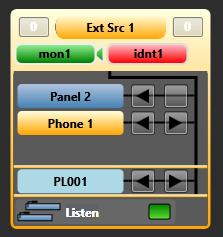
The connections list of the Port Viewer is automatically updated whenever a port is assigned to (or removed from) a conference of which the monitored four-wire is a member.
To connect an additional port (such as a panel, four-wire, ident, monitor or key group) to the monitored four-wire, drag and drop the item into the Port Viewer.
The new port is displayed in the connections list for the Port Viewer, and a new talk and listen crosspoint is created between the new port and the monitored four-wire.
The matrices are updated by Dynam-EC with the new configuration.
You can copy, move, or exclusively assign panels, four-wires, idents, monitors or key groups to a Port Viewer. For more information about making assignments, see Assignment Mode.
You can assign an alias label to a Port Viewer in exactly the same way as conferences. For more information, see Alias Mode.
For more information about using audio meters with Port Viewers, see Using Audio Level Meters (Clear-Vu ®).